
iMovie – How to record voice over in iMovie in Version 10
“I
just updated my iMovie to Version 10 using Mavericks operating system
on the Mac and now I can’t find the microphone button to record
voiceover for my videos.”
iMovie was recently updated with the release of Mavericks (OS X 10.9+).
In the previous version of iMovie the Voice button was located in the front line and well, you knew what the icon was.

With the recent iMovie update to Version 10 the voice over button is
no longer visible but you can get to it very easy. To quickly access the
voice over option in iMovie press the ‘V’ on your keyboard while you
have a project open or go over to the option by going
to the iMovie menu bar, select ‘Window’ and scroll down to ‘Voice’.
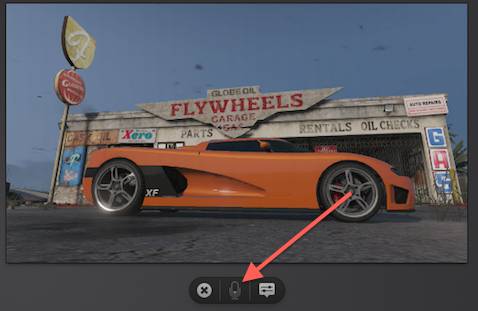
How to record voice over in iMovie:
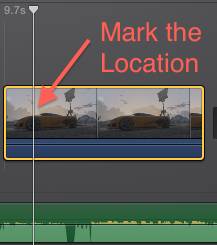
Click on the location you want to begin recording Audio. You
can do this by simply clicking on
the location of the video clip.
If you’re using an external microphone click on the Voice Options button to select it.

With the location marked you can now press the Voice over button to
begin recording. A countdown timer will appear to let you know when to
begin. To stop recording press the ‘Spacebar’.


No comments:
Post a Comment